

Upload a file
Upload takes an image, video or GIF from your computer. Ocoya shows it as soon as it’s attached, and you can reorder, replace or remove anything already there.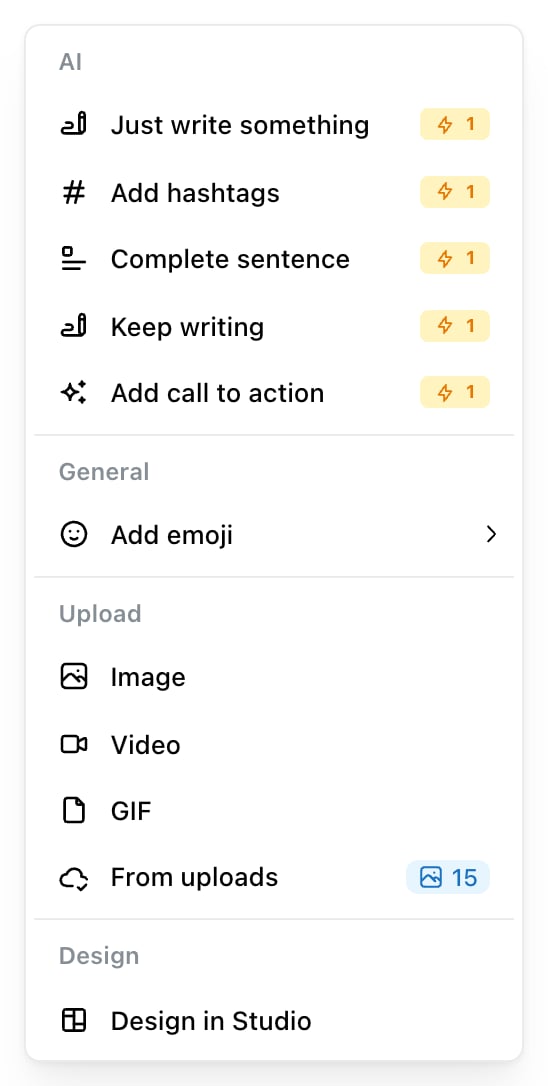
The block menu, opened with / or the + beside the caption. Its Upload section takes an image, video or GIF, and From uploads carries a count of what the brand already has.
Use a Studio design
The Media panel also opens your Studio templates — search them, pick one, and it comes into the post. Two actions are worth knowing:- Edit in Studio opens the design in the editor so you can change it, then bring it back.
- Edit thumbnail sets the still frame a video shows before it plays. TikTok doesn’t support custom thumbnails at all, and on Instagram they work for Reels but not standard video.
Stock photography lives in Studio rather than the post editor. If you want an Unsplash image, add it to a design in Studio and bring the design into the post.
What each network accepts
This is where most media problems come from — the same file can be fine on LinkedIn and refused by Bluesky. The quick version: image counts run from 1 on Google Business to 35 on TikTok, and size limits from 2 MB on Bluesky to 20 MB on TikTok. Video is one file everywhere except Discord, and Bluesky and Google Business take no video at all. The full tables are in Character and media limits. Ocoya checks against them before publishing and names the specific rule you broke, so you don’t have to memorise them.Images that get cropped
Instagram accepts a limited range of shapes — landscape at 1.91:1 and portrait at 4:5 — and Ocoya crops to fit anything outside that. If a crop took something you wanted, crop the image yourself before uploading. That way you choose what survives rather than letting the centre of the frame decide.Related
Character and media limits
Every network’s image, video and size limits.
Generate images with AI
Letting Ocoya make the image instead.