

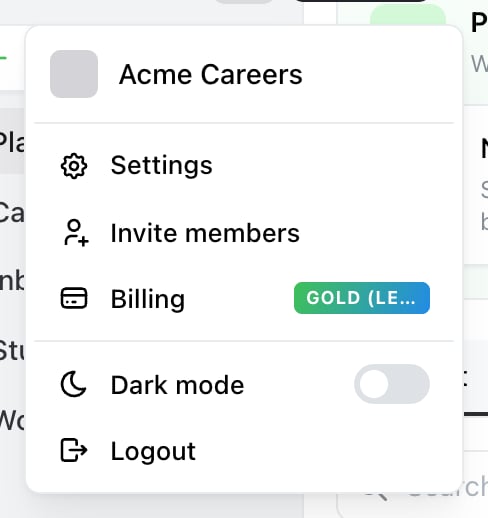
Start here. The account menu is the avatar at the top of the sidebar — Settings opens the screen below.

The Account panel, with your image, name and email, and the password used for signing in.
Profile image
Upload replaces the default. PNG or JPG, up to 5 MB. Your image appears wherever you do — in a brand’s member list, next to comments and approvals — so it’s how teammates identify you.Name
Free text. It’s what teammates see, so it’s worth being the name they’d recognise.Password
The Sign in using password section sets a password, whether or not you already have one. It’s optional — if you only ever sign in with a magic link or Google, you don’t need one. Leaving the field blank leaves your existing password unchanged. You only type in it when you actually want to change something. A password has to meet all five of these:- At least 6 characters
- A number
- A lowercase letter
- An uppercase letter
- A special symbol
Setting a password doesn’t switch anything off. Magic links and Google keep working — you’re adding a way in, not replacing one. See Log in to Ocoya.
Sign in with Google
Third party accounts shows whether a Google account is linked. If it isn’t, the + button links one. There’s no way to unlink a connected account from this screen. If you need one removed, contact support.Changing your email
The Email field here starts the change, but it isn’t immediate — it needs verifying first, and getting it wrong can lock you out. See Change your email address.Related
Change your email address
The verification step, and why it matters.
Log in to Ocoya
Magic links, passwords and Google.