

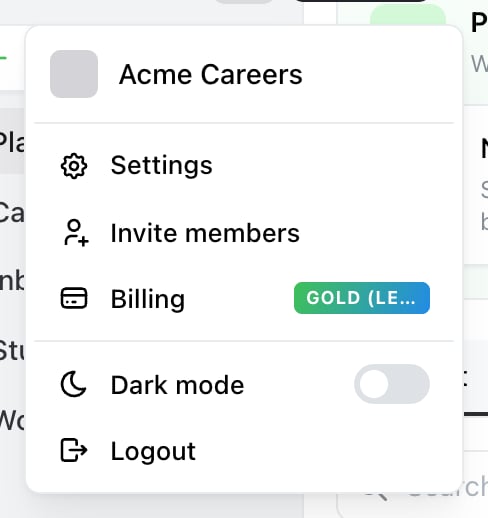
Start here. The account menu is the avatar at the top of the sidebar — Billing opens the screen below, with your plan on the badge.

Unsubscribe sits on the current plan card, to the right of Manage subscription and Payment & invoices.
Cancel
1
Open Billing
Open the account menu — the avatar at the top of the sidebar — and select Billing.
2
Select Unsubscribe
It sits alongside Manage subscription and Payment & invoices on your current plan.
3
Read the offer, or continue
Ocoya asks Before you go, can we help? and offers a call. If your reason is something fixable — a missing feature, a channel that keeps disconnecting, a billing surprise — it’s worth a conversation. Otherwise select Continue cancelling.
4
Confirm in Stripe
Stripe handles the cancellation and returns you to Ocoya.
What happens next
Cancelling stops future payments. It isn’t a refund of the period you’ve already paid for, and it isn’t an instant shutdown — access continues to the end of the paid period, then the brand drops to free-plan limits. On the free plan you keep 1 brand and 1 user, with no connected social profiles and no monthly credits. Your posts, brands and media aren’t deleted — but scheduled posts stop publishing once the channels are no longer usable, so reschedule or export anything time-sensitive before the period ends.Cancelling is not deleting
Cancelling ends the subscription and leaves the account in place, which is what you want if you might come back — resubscribing restores your limits, and your channels can be reconnected from the Channels page. To remove the account and its data entirely, that’s a separate request: contact support.Common problems
“I don’t see Unsubscribe.” Only Owners and Admins can manage billing. See Roles and permissions. “I cancelled but was charged again.” Check the date on the invoice — a charge dated before your cancellation is for the period you were still subscribed. If it’s dated after, contact support with the invoice number. “I cancelled by mistake.” Resubscribe from the plan cards in Billing. If you’re still inside the paid period, nothing was lost.Related
Plans and limits
What each plan includes.
Payment and invoices
Invoices and payment methods.