


The post editor, with the channel row along the top, the caption below, and the post score and detected language in the top right.
Choose the channels
Pick which of the brand’s connected channels the post goes to. A post can go to one or to all of them. Each channel you add is published separately. Three can succeed while a fourth fails — which is why a failed post is diagnosed per channel rather than as a whole.One caption, or one per channel
By default every channel gets the same caption. That’s usually what you want. When it isn’t — because X allows 280 characters and LinkedIn allows 3,000, or because you want a different call to action on each — use Customize per channel. The control carries a badge showing how many channels currently differ from the shared caption, so you can tell at a glance whether a post has variations without opening each tab. A channel you haven’t customised keeps following the shared caption. Edit the shared caption afterwards and the customised ones stay as you left them.This is the cleanest way to handle a caption that’s too long for one network. Rather than cutting the whole post down to X’s limit, write the full version once and a short version for X. See Character and media limits.
What the editor tells you as you write
- Character count, measured against every channel you’ve selected. Ocoya warns before you hit a limit rather than at publish time.
- Post score, a number out of 100 next to the caption. See Post score.
- AI actions on any text you select — rewrite, shorten, expand, translate. See Edit a caption with AI.
Labels, hashtags and notes
Three panels open from the editor and cover things that used to live elsewhere:- Labels — categorise the post so you can find it later, and create or edit the brand’s labels without leaving. See Labels.
- Manage hashtags — pick a hashtag library, or build one here. It only appears once the brand has at least one library; before that, create the first from the Hashtags menu in the AI composer. See Hashtag libraries.
- Notes — free text attached to the post, for your team.
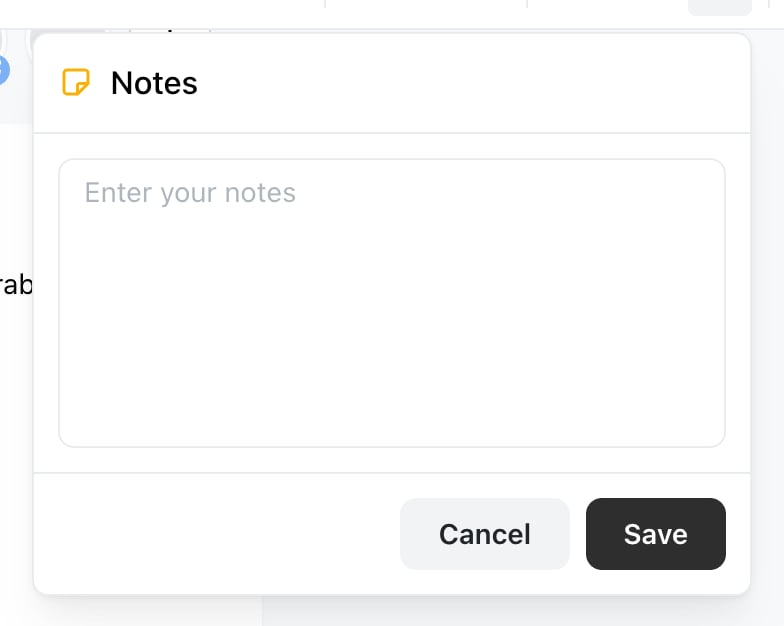
The Notes panel, opened with Cmd/Ctrl + J. Nothing typed here is published.
Post statuses
Every post carries one status, shown in Planner and in the editor.
Needs attention is the one worth understanding. It doesn’t mean the post failed — it means it partly succeeded. Rescheduling the whole post would publish it twice on the channels that already worked, so remove those channels first.
People on the Client role don’t see Drafts or posts awaiting internal approval. That’s deliberate: a client sees finished work and things waiting on them, not your working state. See Roles and permissions.
Scheduling
Pick a date and time in the brand’s time zone — not your computer’s. The time must be at least two minutes from now; closer than that and Ocoya refuses with Choose a schedule time at least 2 minutes from now. Publish now skips the two-minute minimum and sends it immediately. Saving without a date makes it a draft. Drafts sit in Planner until you give them a time.Related
Time zones and scheduling
Why a post can go out at an hour you didn’t expect.
Why didn't my post publish?
Reading the error a channel sent back.