

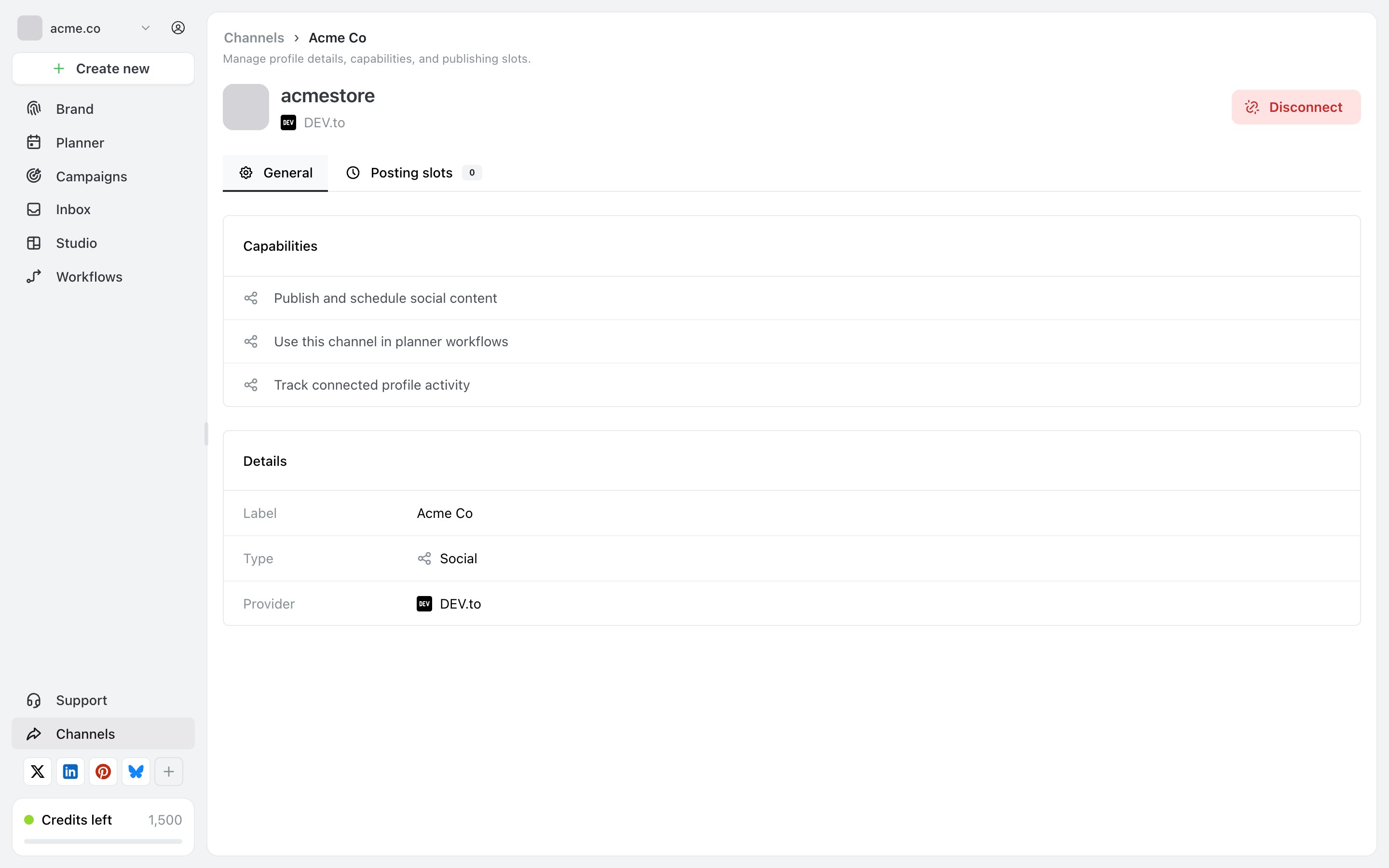
A channel's settings page: the General tab, with Capabilities above Details, and Disconnect in the top right.
General
Capabilities
What this channel is allowed to be used for. Ocoya describes each capability in plain terms:- Publish and schedule social content — whether posts can go to it
- Use this channel in planner workflows — whether workflows can act on it
- Track connected profile activity
Details
Three read-only rows:The channel’s identifier isn’t on this page. If you need it for the Ocoya API, use Copy API profile id in the ⋯ menu on the Channels page.
Posting slots
The weekly times this channel should suggest when you schedule. The tab carries a count of how many slots are set, so a 0 tells you at a glance that this channel has none. See Posting slots.Disconnect
Disconnect sits on the page itself as well as in the ⋯ menu. See Disconnect a channel for what stops and what stays.Related
Posting slots
Setting the times a channel suggests.
Disconnect a channel
When turning a capability off isn’t enough.