

Deleting your account
There’s no self-service button for this. Account deletion is handled as a request — contact support and ask for your account and its data to be deleted.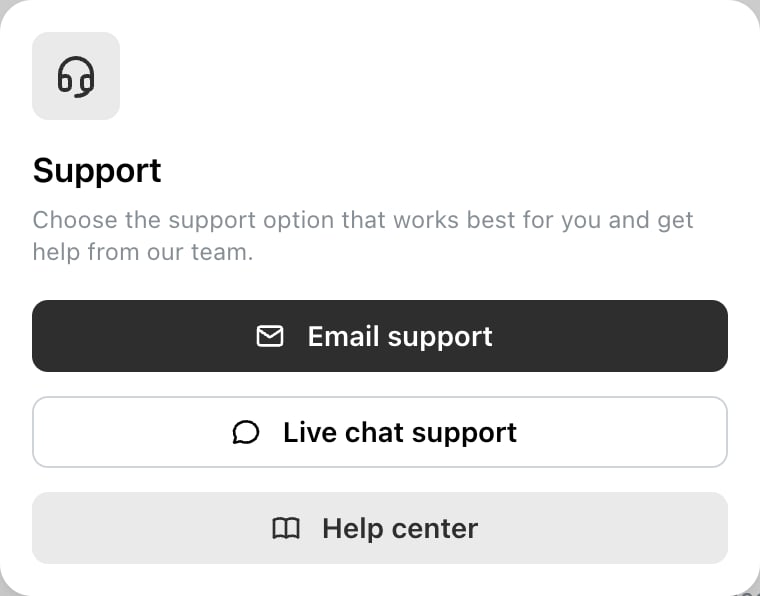
Reach the team from Support at the bottom of the left sidebar. Email is the better route here — you want a written trail.
Before you ask
Disconnect your channels, and revoke Ocoya at each network. Removing your Ocoya account is not the same as withdrawing the access you granted on Facebook or LinkedIn. Do that on each network yourself — see Disconnect a channel for where. Export anything you want to keep. There’s no bulk export, so captions or media you want are worth saving before the account goes. Think about brands other people use. If you own a brand your colleagues or clients work in, deleting your account affects them. Transferring ownership or having someone else take over the brand may be what you actually want. Cancel the subscription first if you have one, so billing stops regardless of how long the deletion request takes. See Cancel your subscription.Cancelling is not deleting
Cancelling ends the subscription and leaves everything in place. Access continues to the end of the paid period, then the brand drops to free-plan limits — 1 brand, 1 user, no connected channels and no credits. Your posts, brands and media aren’t deleted, which is what you want if you might come back. If you want the data gone, cancelling doesn’t do it — ask for deletion.Deleting a brand is not deleting your account
Deleting a brand removes that brand from Ocoya. Your account, your other brands and your subscription are unaffected, and you can’t delete your last one:You need at least one brand. Create or join another brand before deleting this one.See Create, switch and delete brands.
Leaving someone else’s brand
If you just want out of a brand that isn’t yours, you don’t need to delete anything. Open Settings → Team, find yourself and select Leave. Your account and your own brands are untouched.Related
Cancel your subscription
Stopping payments without losing the account.
Disconnect a channel
Revoking Ocoya’s access at each network.