

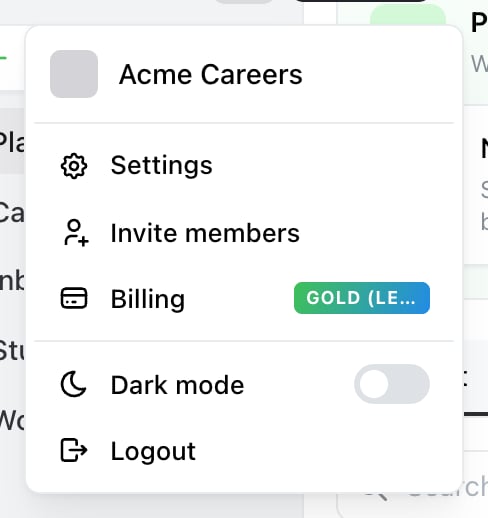
Start here. The account menu is the avatar at the top of the sidebar — Billing opens the screen below, with your plan on the badge.

Billing: the current plan and its buttons at the top, the billing-period toggle, then a card per plan.
Change your plan
1
Open Billing
Open the account menu — the avatar at the top of the sidebar — and select Billing. You’ll see your current plan at the top and the three plan cards below it.
2
Choose monthly or yearly
Use the Monthly / Yearly (2 months free) toggle before choosing a plan — the price on each card follows it.
3
Pick the plan
Select the button on the plan you want. It reads Upgrade to, Downgrade to or Switch to depending on where you’re moving from.
4
Confirm in Stripe
Stripe takes the payment and returns you to Ocoya. The new limits apply as soon as it completes.
What it costs to change
Stripe shows the exact amount before you confirm, so check that screen rather than assuming — the figure depends on where you are in the current period and whether you’re switching interval as well as plan. Nothing is charged until you confirm.If your plan is a legacy one
The button says Switch to rather than Upgrade or Downgrade. Prices across plan generations aren’t comparable — legacy Gold at $99 is not an upgrade over Team at $79 despite the higher price — so Ocoya deliberately doesn’t label the direction. See Legacy plans.Managing an existing subscription
Manage subscription on your current plan opens Stripe’s plan screen for the subscription you already have — useful for changing the interval or seat quantity without moving plan. If you have no active subscription it opens the portal home instead.Common problems
“The buttons are greyed out.” You’re on the free plan and already have a subscription elsewhere, or you’re not an Owner or Admin — only those roles can manage billing. “I downgraded and lost access to a channel.” Downgrading lowers your social-profile and user limits. Anything over the new limit stops being usable until you disconnect down to it or move back up.Related
Plans and limits
What each plan includes.
Payment and invoices
Cards, invoices and receipts.