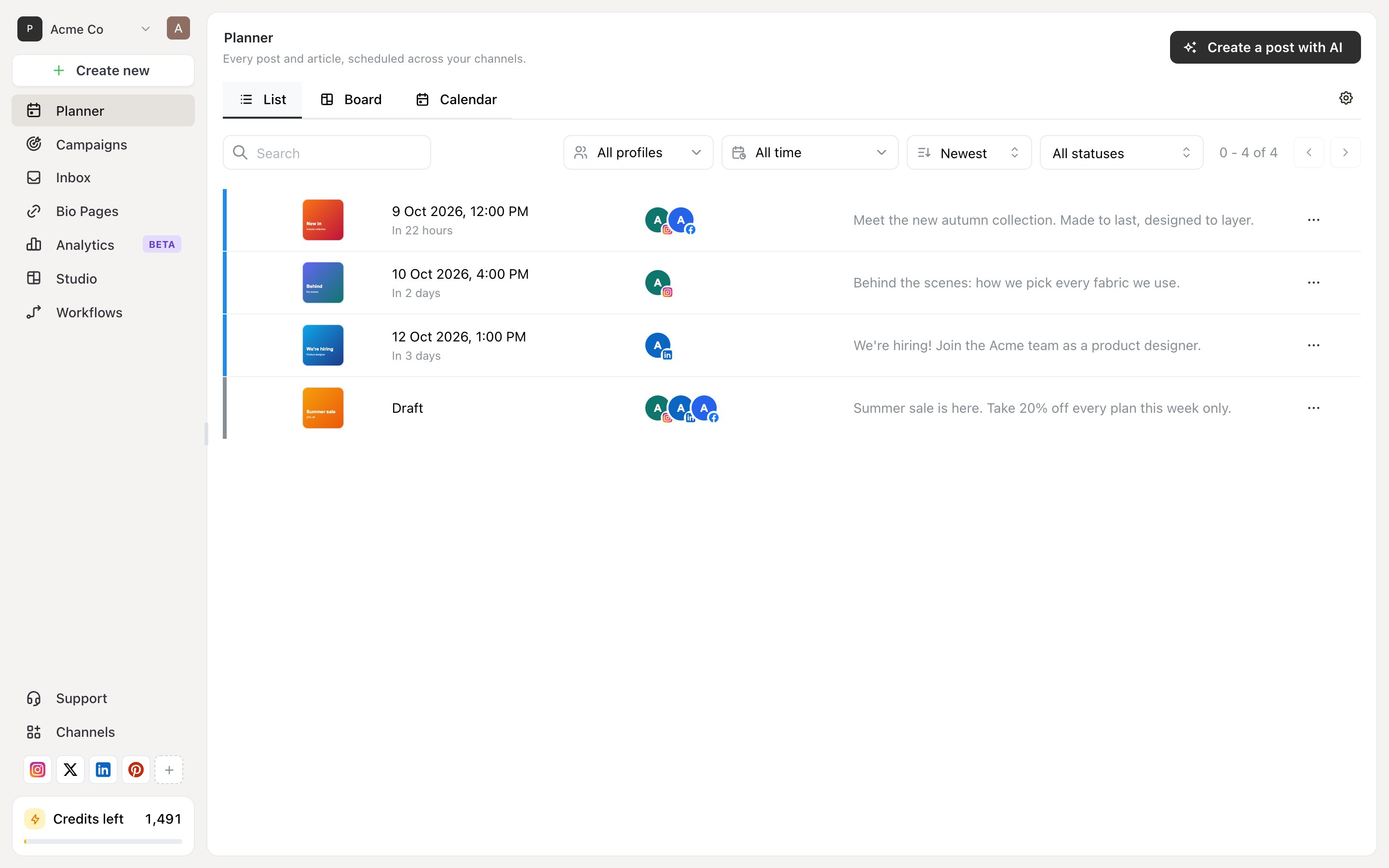
Planner holds every post in the brand. The three tabs at the top — List, Board and Calendar — are three views of the same posts, not three places posts can live. Switching views never moves anything. The filters sit above all three: a search box, an All profiles channel filter, a sort order, and a date range.

List

Ocoya Planner in List view showing three posts in a table with their channels and captions, plus Search, All profiles, All time, Newest and All statuses filters

List view, with the newest posts first and a filter for status.

A flat table, newest first by default, with a status filter the other views don’t have. Use it when you’re looking for a specific post and know something about it — roughly when it went out, which channel, whether it failed. It’s the only view that pages through large numbers of posts comfortably.

Board

Ocoya Planner in Board view with Draft, Scheduled, Pending approval, Posted and Error columns, each showing a post count, and empty columns offering a Create post button

Board view groups the same posts into columns by status.

The same posts grouped into columns by status: Draft, Scheduled, Pending approval, Posted and Error. Each column shows how many posts are in it, and an empty column offers a Create post button. Use it when you care about state rather than timing — what’s still a draft, what’s waiting on an approver, what failed. The Error column is the fastest way to spot a problem you didn’t get an alert about. Note the board has five columns while a post can carry seven statuses. Generating and Needs attention are short-lived, so they don’t get columns of their own.

Calendar

Ocoya Planner in Calendar view showing a month grid with a scheduled post, a Draft panel listing two drafts on the left, and Share, All profiles and Newest controls above

Calendar view, with drafts in a panel on the left and scheduled posts on the grid.

A month grid. Drafts sit in a panel on the left rather than on the grid, because they have no date — drag one onto a day to schedule it. Use it when you care about spacing: whether you’ve got four posts on Tuesday and nothing all week, or whether a campaign is landing evenly. Calendar is also where the Share button lives, for giving someone a read-only view. See Share your calendar.

Which to use

Planner settings

The gear icon at the right of the view tabs opens Planner settings — time zone, week start, and Publish like a human. Those apply to the brand, not to the view you happen to be in. See Time zones and scheduling.

The post editor

What each status means.

Share your calendar

A read-only link for a client.