

Everyone you invite to Ocoya joins a brand with a role. The role decides what they can change.
There are four roles.
| Role | Can do |
|---|---|
| Owner | Everything, including transferring ownership |
| Admin | Everything except managing the owner |
| Manager | Day-to-day work and settings, but not people or billing |
| Client | Connect channels, approve posts, comment and view analytics |
What each role can change
| Owner | Admin | Manager | Client | |
|---|---|---|---|---|
| Manage the owner | Yes | No | No | No |
| Brand settings | Yes | Yes | No | No |
| Invite and remove people | Yes | Yes | No | No |
| Billing and subscription | Yes | Yes | No | No |
| API tokens and API access (API tokens) | Yes | Yes | No | No |
| Other settings | Yes | Yes | Yes | No |
| Create and schedule posts | Yes | Yes | Yes | No |
| Approve or decline posts | Yes | Yes | Yes | Yes |
| Connect channels | Yes | Yes | Yes | Yes |
| View analytics | Yes | Yes | Yes | Yes |
Choosing a role
Owner — one person per brand. Owns the subscription, which covers every brand they own, and the credit balance is theirs. Everything done in the brand draws on the owner’s credits.
Admin — a trusted colleague who needs to run everything, including inviting people and handling billing. The only thing they cannot do is manage the owner.
Manager — your day-to-day social media person. They can create, schedule, publish and adjust settings, but cannot see billing or change who has access. This is the right role for most team members.
Client — deliberately narrow, for the person whose social accounts these are. They can connect their own channels, approve or decline the posts you’ve drafted, leave comments and see how things performed. They cannot create or edit content.
Client is the role to use for an agency’s customer. They get the approval and visibility they want without being able to change scheduled content.
Credits and roles
Credits belong to the brand owner, not to the person doing the work. Anyone working in a brand spends the owner’s credits, whatever their role. See What are credits?
Changing someone’s role
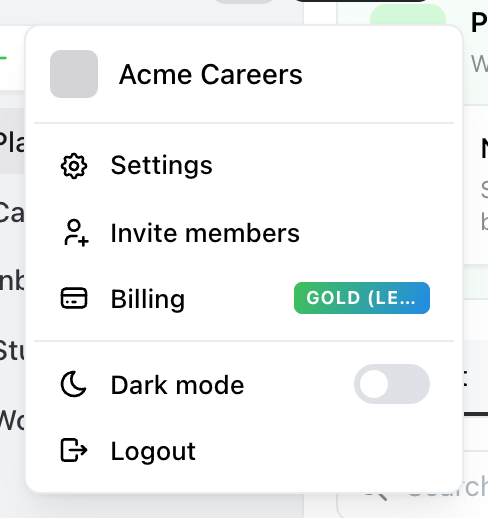
Where Team lives: the account menu, behind the avatar at the top of the sidebar. Invite members goes straight to it.
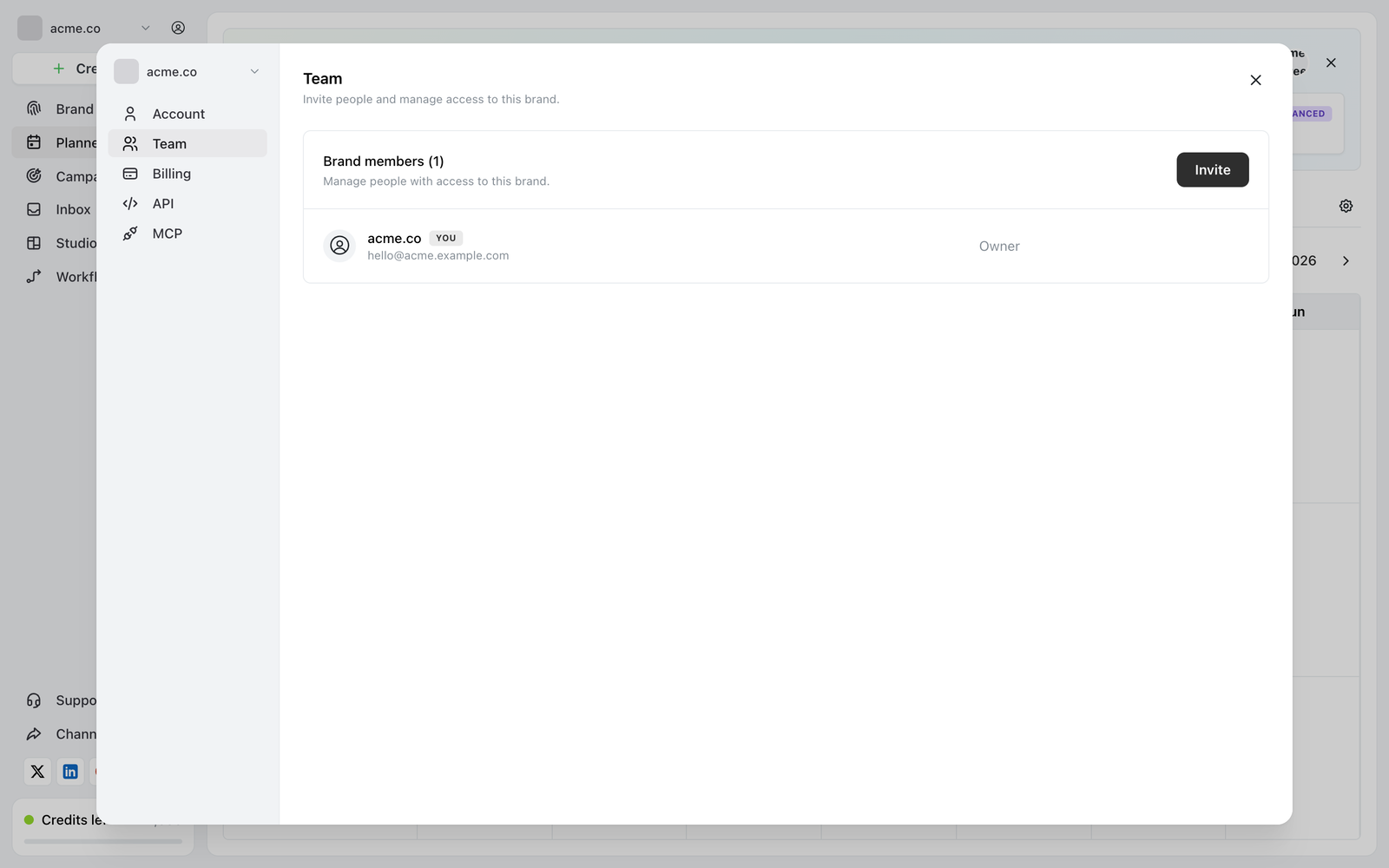
Settings → Team lists everyone with access to the brand and the role each one holds.
Open Settings → Team, find the person, and change their role. It takes effect immediately — they don’t need to sign out and back in.
Only owners and admins can change roles.
Removing someone
Removing a member ends their access to that brand immediately. Content they created stays — posts, drafts and campaigns belong to the brand, not to the person who made them.
If they’re a member of your other brands, those are unaffected. Membership is per brand.