

Set them
Open Channels → ⋯ → Manage on a channel, then Posting slots. There’s also a shortcut from the post editor — Edit posting slots on a selected channel.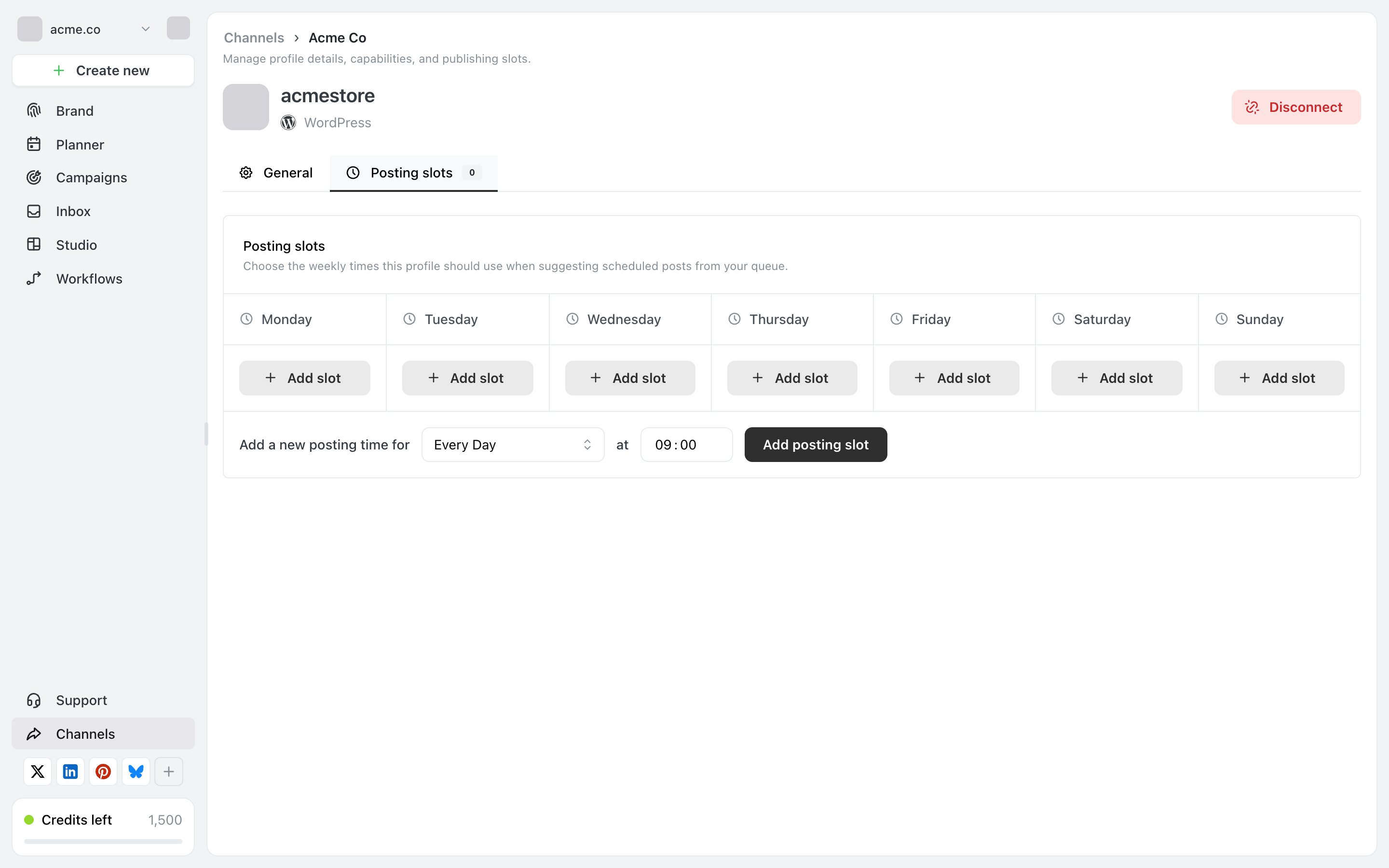
The Posting slots tab: a column per day, and a row at the bottom for adding a time across several days at once.
1
Add one time to one day
Add slot in that day’s column.
2
Or add the same time across several days
The row underneath — Add a new posting time for … — takes a day selection (Every Day, Weekdays, Weekends, or a single day), a time, and Add posting slot. This is the quicker route for a recurring time.
3
Remove any you don't want
Remove the slot from the day it sits under.
What they do and don’t do
They suggest, they don’t publish. A slot is a recommendation offered when you schedule. Setting slots does not make posts appear at those times on its own — something still has to create the post. If you want posts to actually go out on a rhythm without you writing each one, that’s a workflow. See Create a workflow. They’re in the brand’s time zone, like everything else scheduled. Set the time zone first or your slots will be offset. See Time zones and scheduling.Choosing times
A few slots you’ll actually fill beat a dense grid you won’t. Start with two or three a week per channel and add more when you’re consistently ahead. If you have analytics or knowledge of when your audience is active, use it. Otherwise start with mid-morning and early evening on weekdays, and adjust once you have a few weeks of your own data.Related
Manage a channel
Where slots live, alongside details and capabilities.
Time zones and scheduling
The zone your slots are interpreted in.