

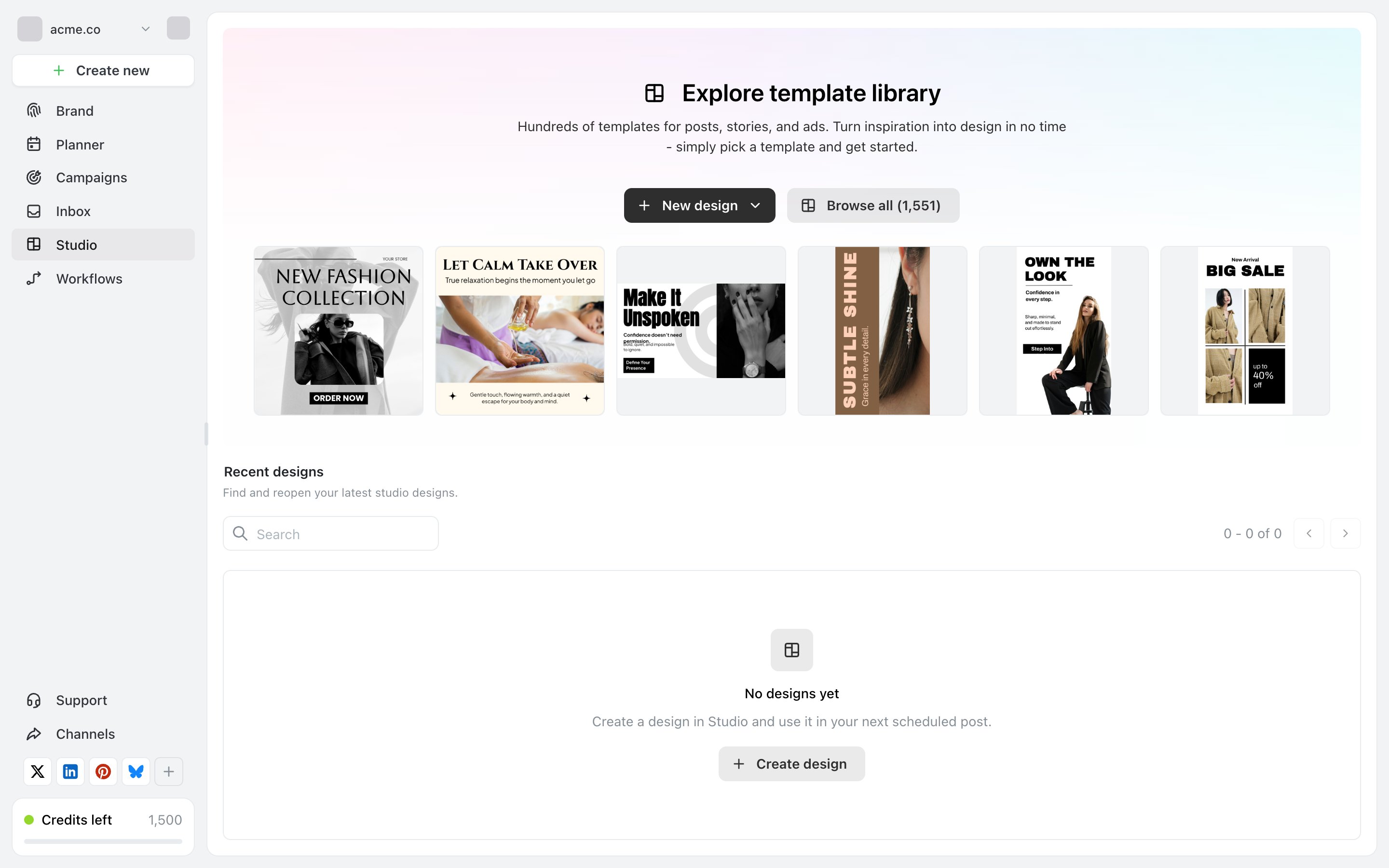
Studio. New design starts a blank canvas; Browse all opens the full library, with its size in the button.
Find one
Browse all in Studio opens the template library, with a search box and category suggestions — Instagram, Sale, Restaurant, Real estate, Fitness and so on. The button carries the library’s current size, so you can see at a glance how many there are. The Templates panel inside the editor does the same thing without leaving your design. Search by what the post is for rather than by how it should look. Sale and Testimonial return usable layouts; blue modern minimal mostly doesn’t.Use one
Picking a template copies it into your designs. The original is untouched, so you can start from the same template as often as you like. From the template browser, Use in post takes the design straight into a post rather than leaving it in Studio — the quicker route when you already know where it’s going.Make it yours
A template used unchanged looks like a template. Three changes do most of the work:- Your colours. Studio has your brand’s palette — recolouring the blocks is the single biggest difference.
- Your logo, if the layout has a place for one.
- Your image, via Replace image, which keeps the size and position the designer chose.
When a template is the wrong move
Templates are built around a certain amount of text. If yours is much longer or much shorter, you’ll spend longer fighting the layout than building one — a blank canvas at the right format is faster. They’re also fixed-shape. A template made for a square post needs rebuilding for a story rather than resizing.Related
Studio
Starting a design and getting it into a post.
Sizes and formats
Picking the right canvas first.