

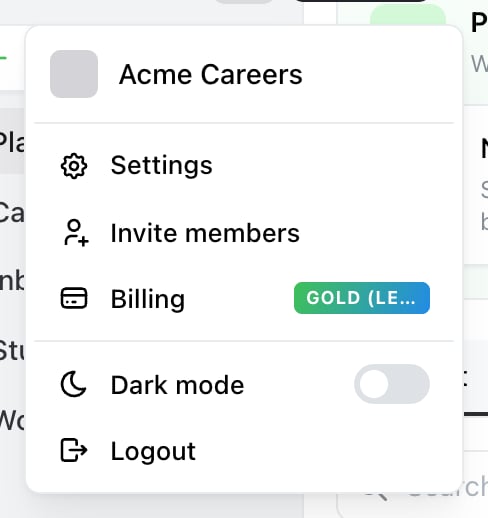
Start here. The account menu is the avatar at the top of the sidebar — Billing opens the screen below, with your plan on the badge.

Payment & invoices, on the current plan card, opens Stripe's billing portal.
Open your billing details
1
Open Billing
Open the account menu — the avatar at the top of the sidebar — and select Billing.
2
Select Payment & invoices
The button sits on your current plan, next to Manage subscription. It opens Stripe’s billing portal.
Update your card
In the portal, under payment methods, add the new card and make it default. Remove the old one afterwards if you don’t want it kept. Do this before your renewal date rather than after a failed payment — a failed charge can suspend the subscription until it’s settled.Download invoices and receipts
The portal lists every invoice with its date, amount and number, each with a download link. Invoices are PDFs and include whatever billing details and tax ID were on file at the time of the charge — which is why adding a tax ID only affects future invoices. See VAT and tax IDs.Update billing details
Company name, address and email are all editable in the portal, under billing information. These appear on future invoices.Common problems
“I can’t see the Billing option.” Only Owners and Admins can manage billing. See Roles and permissions. “My payment failed.” Update the card in the portal, then retry the outstanding invoice from the same page. Stripe also retries automatically for a few days. “An old invoice has the wrong company details.” Invoices are fixed once issued. Contact support if you need one reissued.Related
VAT and tax IDs
Adding a VAT or GST number to your invoices.
Change your plan
Upgrading, downgrading and switching.