

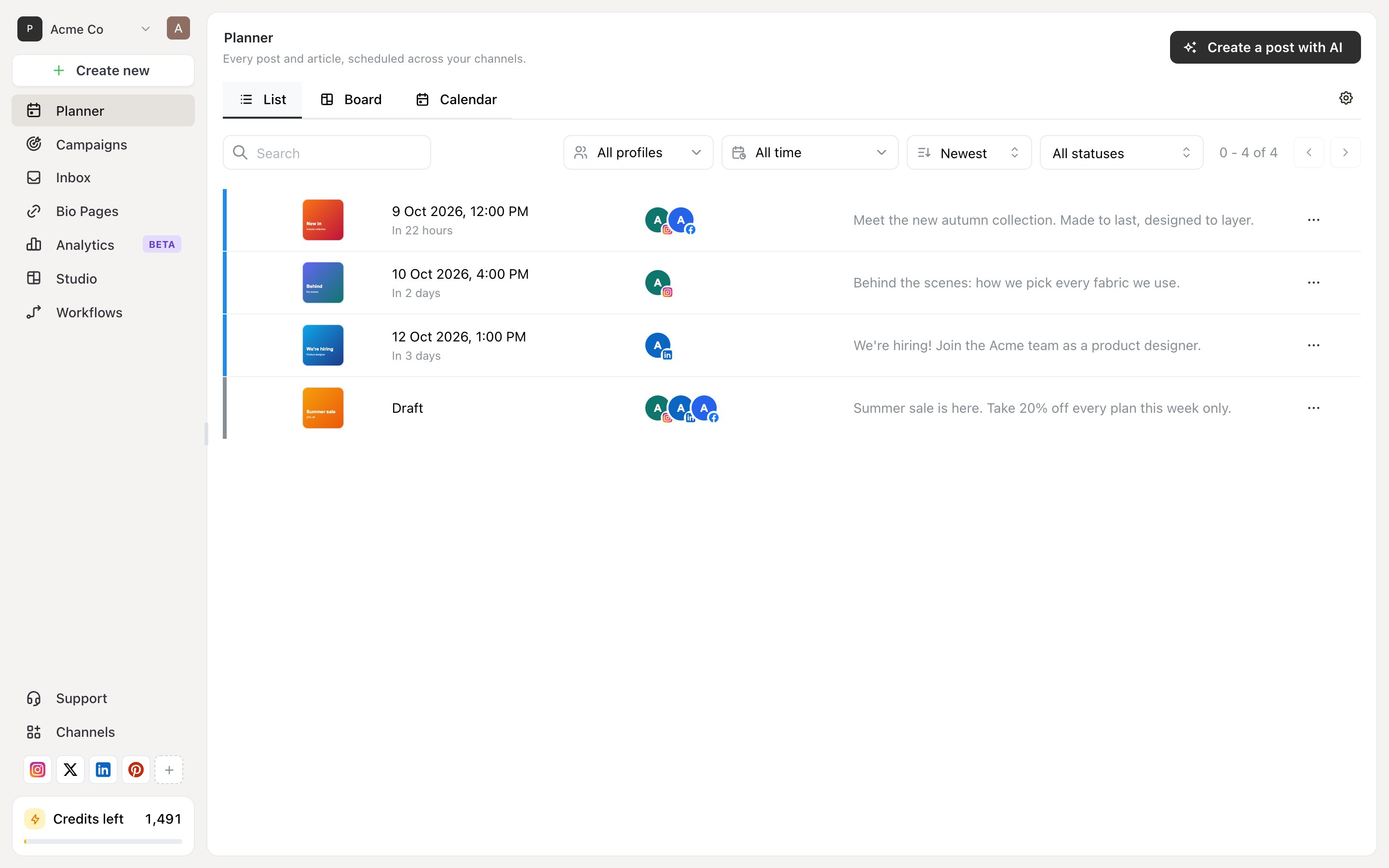
Planner's List view. Open a post to edit it, or use the ⋯ menu on its row.
Edit a scheduled post
Change the caption, the media, the channels or the time, then save. As long as the post hasn’t published yet, edits apply to what goes out. A post that has already published can’t be edited from Ocoya — what’s on the network is a normal post on your account now. Edit or delete it there.Reschedule
Change the date and time on the post. The new time still has to be at least two minutes ahead. To move a post in the Calendar view, drag it to a different day. That’s usually quicker than opening it when you’re spacing a week out.Duplicate a post
Duplicate post in the editor makes a copy you can change and schedule separately. The original is untouched. This is the practical way to:- Repost something that did well, with a fresh angle
- Build a series from one post that’s already on-brand
- Keep a caption you like as a starting point
Delete a post
Delete post removes it. For a post that hasn’t gone out, Ocoya confirms:Do you really want to delete this post? Any schedules will immediately stop running.For one that has already published, deleting removes it from the networks it went to as well, and the confirmation names them:
Delete this post from Ocoya and from Instagram and LinkedIn? This cannot be undone.A few networks don’t allow it, and Ocoya tells you when a copy is left live. See Deleting a published post for the network-by-network list. Delete is the right move for a draft you don’t want or a scheduled post you’ve changed your mind about. For a post that partly published, don’t delete it — see below.
A post that published to some channels but not others
Its status is Needs attention. Don’t reschedule or delete the whole post: rescheduling would publish it a second time on the channels that already worked. Remove the channels that succeeded, then reschedule the rest. See Why didn’t my post publish?Related
Planner views
Finding the post you want to change.
The post editor
What each status means and what it allows.