

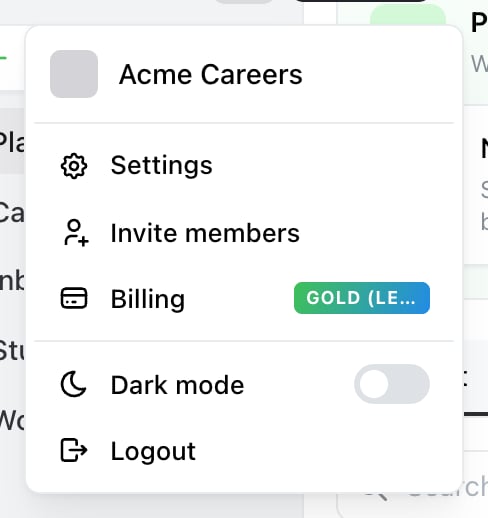
Start here. The account menu is the avatar at the top of the sidebar — Settings opens the screen below.

Settings → Account. The Email field sits under Basic information, below your name.
Change it
1
Open Settings → Account
From the account menu in the left sidebar.
2
Type the new address in the Email field
Nothing has changed yet.
3
Confirm
Ocoya asks you to confirm the new address before sending anything, and warns:
Sending the verification to someone else may end up forbidding your access.Read the address on that screen carefully. This is the point where a typo becomes a problem.
4
Select Send verification
Ocoya emails a verification link to the new address. Your account shows Email change pending verification until you use it.
5
Open the link
Select the link in that email. Ocoya confirms with Email updated! and the new address is live.
Until you verify, nothing has changed
The old address still signs you in while a change is pending. That’s the safety net: if the verification never arrives, you haven’t lost access. If the link fails, Ocoya says That didn’t work. — start the change again rather than trying the same link twice.Why the warning matters
Check the address on the confirmation screen before sending. It’s the last point at which a mistake is free.If the verification email doesn’t arrive
Work through these in order:- Wait two minutes. Delivery is usually immediate but can lag.
- Check spam and junk at the new address.
- Confirm the address you typed is one you can actually open.
- If your company filters inbound mail, ask IT to allow
ocoya.com.
What it doesn’t change
Your brands, posts, channels, credits and team memberships are all unaffected — only the address you sign in with.If you sign in with Google, changing your Ocoya email doesn’t change your Google account. Because a linked Google account has to match your Ocoya address, that link may stop working after a change. See Your account.
Related
Your account
Name, image, password and connected sign-in.
Log in to Ocoya
What to do if you can’t get in.