

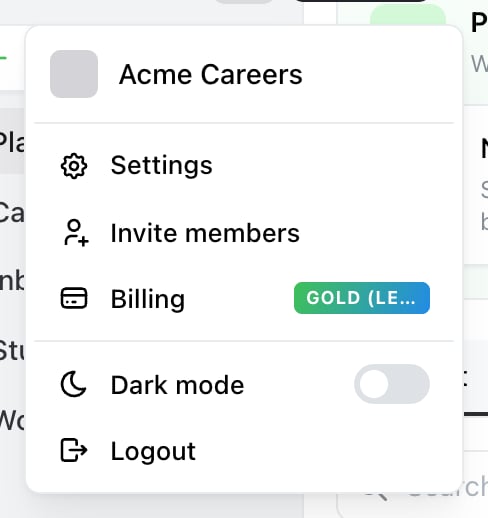
Start here. The account menu is the avatar at the top of the sidebar — Settings, then API in the settings sidebar.

Settings → API, with the request chart above and your tokens below.
Create a token
Select Create token and give it a name. The name is only for you — it’s there so you can tell tokens apart later and revoke the right one. Name tokens after where they’re used, not what they do. Zapier, staging server, reporting script tells you what breaks when you revoke it. API key 2 doesn’t. Copy the token as soon as it’s created and store it somewhere safe. Ocoya shows only the first and last few characters afterwards.What a token can reach
That matters if you were planning to give a client’s developer a token for their brand only. You can’t. They’d be able to reach every brand you own.Revoke a token
The ⋯ menu on any token offers Delete token. Deletion is immediate and permanent — anything using that token starts failing straight away, so make sure you know what’s using it first. That’s what the names are for. There’s no way to rotate a token in place. To replace one: create the new token, move your integration across, then delete the old one.Watching usage
The API usage chart shows authenticated requests for the current brand, over the last hour, day or 30 days. It’s the quickest way to confirm an integration is actually calling Ocoya, or to spot one calling far more than you expected. Ocoya allows 60 requests per minute per key, and returns429 Too Many Requests beyond that. The full detail, including the rate-limit headers, is in Rate limits.
Related
REST API documentation
Authentication, endpoints and examples.
Connect an AI tool
Using Ocoya from Claude, ChatGPT or your editor instead.