Select Channels in the left sidebar, then Connect channel.
2
Choose Threads
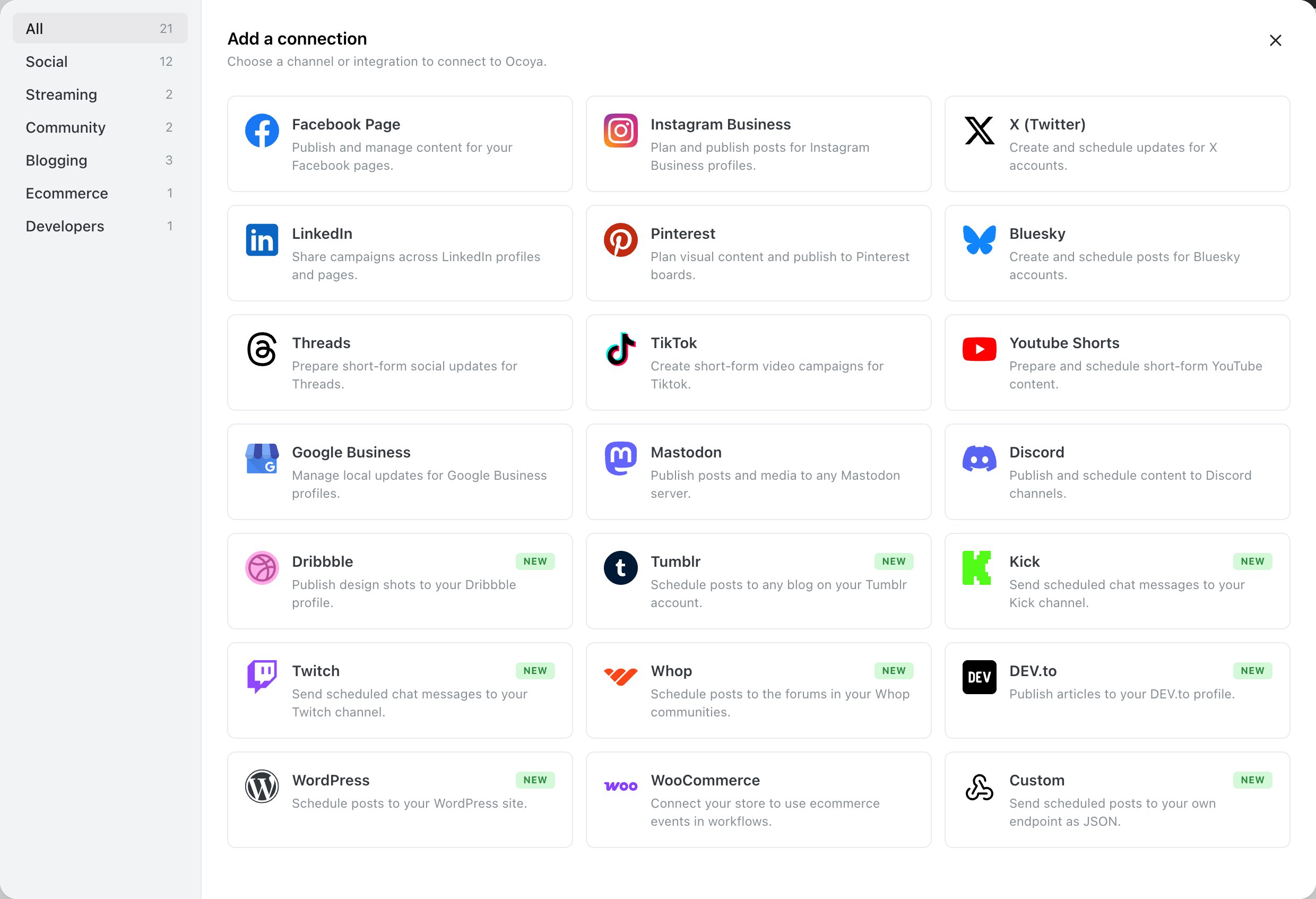
Pick Threads from the Add a connection panel.
Threads in the Add a connection panel.
3
Approve all three permissions
Threads asks for permission to read your profile, publish content and manage replies. Approve all three. The replies permission is what lets Ocoya publish threads — without it, any caption over 500 characters fails at publishing time.
There’s no profile-selection screen. Threads returns a single profile, and it appears on your Channels page once approved.
Above 500 characters Ocoya splits your caption into a chain of replies rather than refusing it. Ocoya warns you while you write, and the post still publishes. Above 5,000 characters it’s refused outright.See Long posts and threads for how the splitting works.
“Threading requires the threads_manage_replies permission.” You approved the first two permissions but not the third. Reconnect the profile and approve all of them — see Reconnect a channel.“My Instagram account is connected but Threads isn’t.” They’re separate connections in Ocoya, even on the same login. Connect Threads on its own.
{"docsConfig":{"theme":"almond","$schema":"https://mintlify.com/docs.json","name":"Ocoya API Docs","colors":{"primary":"#009689","light":"#009689","dark":"#009689"},"logo":{"light":"https://mintcdn.com/ocoya/ozMkI-5VuttqBG2a/images/logo-black.svg?fit=max\u0026auto=format\u0026n=ozMkI-5VuttqBG2a\u0026q=85\u0026s=d99168759950c8b7bee484fda796349b","dark":"https://mintcdn.com/ocoya/ozMkI-5VuttqBG2a/images/logo-white.svg?fit=max\u0026auto=format\u0026n=ozMkI-5VuttqBG2a\u0026q=85\u0026s=aef7a48ea92893cfa3fb4eecb6b9f85a","href":"https://www.app.ocoya.com/"},"favicon":"https://mintcdn.com/ocoya/ozMkI-5VuttqBG2a/images/favicon.svg?fit=max\u0026auto=format\u0026n=ozMkI-5VuttqBG2a\u0026q=85\u0026s=4b8a7c830c3d60549ceec65246a61f3b","api":{"openapi":{"source":"openapi.yaml","directory":"api-reference"},"params":{"expanded":"all"},"playground":{"display":"interactive","proxy":true},"examples":{"defaults":"required","languages":["curl","javascript","python","php","ruby"],"prefill":true,"autogenerate":true},"url":"full"},"navbar":{"links":[{"href":"https://www.app.ocoya.com/?modal=support","label":"Support"}]},"icons":{"library":"lucide"},"contextual":{"options":["chatgpt","claude","perplexity"],"display":"header"},"styling":{"latex":true},"navigation":{"pages":[]}},"deployment":{"deploymentMetadataValue":{"subdomain":"ocoya","hasAudioNarration":false,"actualSubdomain":"ocoya","customDomains":["docs.ocoya.com"],"gitSource":{"type":"github","owner":"ocoya","repo":"ocoya","deployBranch":"main","contentDirectory":"apps/ocoya-web/docs","isPrivate":true,"mountPath":"","label":""},"chroma":{"collectionId":"15af3331-7c2d-4be1-8995-92ec78d70e5d","liveDeploymentHistoryId":"6ad6a133304f57e382fbd99d","schemaVersion":"v3","latestBuiltDeploymentHistoryId":"6ad6a133304f57e382fbd99d"},"entitlements":{},"buildId":"6ad6a133304f57e382fbd99d","clientVersion":"0.0.3926","searchFilterCounts":[{"language":"default","tag":"Help center","count":111},{"language":"default","tag":"Channels","count":34},{"language":"default","tag":"MCP","count":30},{"language":"default","tag":"Creating content","count":26},{"language":"default","tag":"By network","count":26},{"language":"default","tag":"REST API","count":22},{"language":"default","tag":"Tools","count":21},{"language":"default","tag":"API Reference","count":15},{"language":"default","tag":"Get Started","count":12},{"language":"default","tag":"Get started","count":9}]},"assistantConfig":{"enableAskAiButton":false,"enableStarterQuestions":false,"enableContextualStarterQuestions":false,"enableAskAiSearchBar":true},"hasChatPermissions":false,"hasWebMcpPermissions":false,"toggles":[{"name":"kill-isr","enabled":true,"variant":{"name":"disabled","enabled":false,"feature_enabled":true},"impressionData":false},{"name":"agent-mintlify-slack","enabled":true,"variant":{"name":"disabled","enabled":false,"feature_enabled":true},"impressionData":false},{"name":"editor-v7-file-tree","enabled":true,"variant":{"name":"disabled","enabled":false,"feature_enabled":true},"impressionData":false},{"name":"agent-integrations-settings","enabled":true,"variant":{"name":"disabled","enabled":false,"feature_enabled":true},"impressionData":false},{"name":"automations-pr-grouping","enabled":true,"variant":{"name":"disabled","enabled":false,"feature_enabled":true},"impressionData":false},{"name":"custom-prefix","enabled":true,"variant":{"name":"disabled","enabled":false,"feature_enabled":true},"impressionData":false},{"name":"analytics-v7","enabled":true,"variant":{"name":"disabled","enabled":false,"feature_enabled":true},"impressionData":false},{"name":"user-flows-analytics","enabled":true,"variant":{"name":"disabled","enabled":false,"feature_enabled":true},"impressionData":false},{"name":"no-publish-flow","enabled":true,"variant":{"name":"disabled","enabled":false,"feature_enabled":true},"impressionData":false},{"name":"workos-onboarding","enabled":true,"variant":{"name":"disabled","enabled":false,"feature_enabled":true},"impressionData":false},{"name":"llms-txt-v2","enabled":true,"variant":{"name":"disabled","enabled":false,"feature_enabled":true},"impressionData":false},{"name":"pause-universal-search-reconcile","enabled":true,"variant":{"name":"disabled","enabled":false,"feature_enabled":true},"impressionData":false},{"name":"snapshot-serving-live","enabled":true,"variant":{"name":"disabled","enabled":false,"feature_enabled":true},"impressionData":false},{"name":"stripTemperatureMiddleware","enabled":true,"variant":{"name":"disabled","enabled":false,"feature_enabled":true},"impressionData":false},{"name":"per-site-search-delta","enabled":true,"variant":{"name":"disabled","enabled":false,"feature_enabled":true},"impressionData":false},{"name":"support-platform-pylon-zendesk","enabled":true,"variant":{"name":"disabled","enabled":false,"feature_enabled":true},"impressionData":false},{"name":"snapshot-serving","enabled":true,"variant":{"name":"disabled","enabled":false,"feature_enabled":true},"impressionData":false},{"name":"instant-rollback","enabled":true,"variant":{"name":"disabled","enabled":false,"feature_enabled":true},"impressionData":false},{"name":"granular-notifications-server","enabled":true,"variant":{"name":"disabled","enabled":false,"feature_enabled":true},"impressionData":false},{"name":"granular-notifications","enabled":true,"variant":{"name":"disabled","enabled":false,"feature_enabled":true},"impressionData":false},{"name":"editor-private-page-search","enabled":true,"variant":{"name":"disabled","enabled":false,"feature_enabled":true},"impressionData":false},{"name":"automations-fable","enabled":true,"variant":{"name":"disabled","enabled":false,"feature_enabled":true},"impressionData":false},{"name":"fixed-ai-action-pricing","enabled":true,"variant":{"name":"disabled","enabled":false,"feature_enabled":true},"impressionData":false},{"name":"automation-resolve-merge-conflict","enabled":true,"variant":{"name":"disabled","enabled":false,"feature_enabled":true},"impressionData":false},{"name":"scoped-publishing","enabled":true,"variant":{"name":"disabled","enabled":false,"feature_enabled":true},"impressionData":false},{"name":"mintql","enabled":true,"variant":{"name":"disabled","enabled":false,"feature_enabled":true},"impressionData":false},{"name":"page-level-analytics","enabled":true,"variant":{"name":"disabled","enabled":false,"feature_enabled":true},"impressionData":false},{"name":"editor-version-history-v2","enabled":true,"variant":{"name":"disabled","enabled":false,"feature_enabled":true},"impressionData":false},{"name":"editor-nav-generations","enabled":true,"variant":{"name":"disabled","enabled":false,"feature_enabled":true},"impressionData":false},{"name":"billing-page-v2","enabled":true,"variant":{"name":"disabled","enabled":false,"feature_enabled":true},"impressionData":false},{"name":"vite-origin","enabled":true,"variant":{"name":"disabled","enabled":false,"feature_enabled":true},"impressionData":false},{"name":"workspace-projects","enabled":true,"variant":{"name":"disabled","enabled":false,"feature_enabled":true},"impressionData":false},{"name":"assistant-v5","enabled":true,"variant":{"name":"disabled","enabled":false,"feature_enabled":true},"impressionData":false},{"name":"byok-sep-25","enabled":true,"variant":{"name":"disabled","enabled":false,"feature_enabled":true},"impressionData":false},{"name":"fork-pr-previews","enabled":true,"variant":{"name":"disabled","enabled":false,"feature_enabled":true},"impressionData":false},{"name":"revalidation-jwt","enabled":true,"variant":{"name":"disabled","enabled":false,"feature_enabled":true},"impressionData":false},{"name":"editor-agent-model-picker","enabled":true,"variant":{"name":"disabled","enabled":false,"feature_enabled":true},"impressionData":false},{"name":"hobby-abuse-scan","enabled":true,"variant":{"name":"disabled","enabled":false,"feature_enabled":true},"impressionData":false},{"name":"dashboard-inbox","enabled":true,"variant":{"name":"disabled","enabled":false,"feature_enabled":true},"impressionData":false}],"isAtlas":false,"googleFontsInlined":true},"customCss":[{"filePath":"style.css","content":"#navbar a[href=\"https://www.app.ocoya.com/\"] img,[data-component-part=navbar-logo] img{height:18px!important;max-height:18px!important;width:auto!important;max-width:132px!important;object-fit:contain}#navbar a[href=\"https://www.app.ocoya.com/?modal=support\"],[data-component-part=navbar-link][href=\"https://www.app.ocoya.com/?modal=support\"]{color:#52525b;font-weight:500;text-decoration:none}#navbar a[href=\"https://www.app.ocoya.com/?modal=support\"]:focus,#navbar a[href=\"https://www.app.ocoya.com/?modal=support\"]:hover,[data-component-part=navbar-link][href=\"https://www.app.ocoya.com/?modal=support\"]:focus,[data-component-part=navbar-link][href=\"https://www.app.ocoya.com/?modal=support\"]:hover{color:#27272a}.ocoya-docs-button{align-items:center;background:#009689;border:1px solid transparent;border-radius:.5rem;box-sizing:border-box;color:#fff;display:inline-flex;font-size:.875rem;font-weight:600;gap:.5rem;height:2.25rem;line-height:1.25rem;margin:.25rem 0 1.25rem;padding:.5rem .875rem;text-decoration:none;transition:background-color 120ms ease,color 120ms ease;vertical-align:top}.ocoya-docs-button:focus,.ocoya-docs-button:hover{background:#008579;border-color:transparent;color:#fff;text-decoration:none}"}],"page":{"pagePath":"help/channels/threads","slug":"/help/channels/threads","pageMetadata":{"title":"Threads","description":"Connect a Threads profile, what you can post, and how long captions become threads.","icon":"at-sign","intercom":{"external_id":"channel-threads","ai_agent_availability":true,"ai_copilot_availability":true},"href":"/help/channels/threads"},"description":{"compiledSource":"\"use strict\";\nconst {jsx: _jsx} = arguments[0];\nconst {useMDXComponents: _provideComponents} = arguments[0];\nfunction _createMdxContent(props) {\n const _components = {\n p: \"p\",\n ..._provideComponents(),\n ...props.components\n };\n return _jsx(_components.p, {\n children: \"Connect a Threads profile, what you can post, and how long captions become threads.\"\n });\n}\nfunction MDXContent(props = {}) {\n const {wrapper: MDXLayout} = {\n ..._provideComponents(),\n ...props.components\n };\n return MDXLayout ? _jsx(MDXLayout, {\n ...props,\n children: _jsx(_createMdxContent, {\n ...props\n })\n }) : _createMdxContent(props);\n}\nreturn {\n default: MDXContent\n};\n","frontmatter":{},"scope":{}},"pageType":"default","mdx":{"mdxSource":{"compiledSource":"\"use strict\";const{Fragment:_Fragment,jsx:_jsx,jsxs:_jsxs}=arguments[0];const{useMDXComponents:_provideComponents}=arguments[0];function _createMdxContent(props){const _components={a:`a`,p:`p`,strong:`strong`,tbody:`tbody`,td:`td`,th:`th`,thead:`thead`,tr:`tr`,..._provideComponents(),...props.components},{Card,Columns,Frame,Heading,OptimizedImage,Step,Steps,Table}=_components;if(!Card)_missingMdxReference(`Card`,true);if(!Columns)_missingMdxReference(`Columns`,true);if(!Frame)_missingMdxReference(`Frame`,true);if(!Heading)_missingMdxReference(`Heading`,true);if(!OptimizedImage)_missingMdxReference(`OptimizedImage`,true);if(!Step)_missingMdxReference(`Step`,true);if(!Steps)_missingMdxReference(`Steps`,true);if(!Table)_missingMdxReference(`Table`,true);return _jsxs(_Fragment,{children:[_jsx(_components.p,{children:`Threads connects directly, not through Instagram — even though the two share an account. You connect one Threads profile at a time.`}),`\n`,_jsx(Heading,{level:`2`,id:`connect-threads`,children:`Connect Threads`}),`\n`,_jsxs(Steps,{children:[_jsx(Step,{title:`Open Channels`,children:_jsxs(_components.p,{children:[`Select `,_jsx(_components.strong,{children:`Channels`}),` in the left sidebar, then `,_jsx(_components.strong,{children:`Connect channel`}),`.`]})}),_jsxs(Step,{title:`Choose Threads`,children:[_jsxs(_components.p,{children:[`Pick `,_jsx(_components.strong,{children:`Threads`}),` from the `,_jsx(_components.strong,{children:`Add a connection`}),` panel.`]}),_jsx(Frame,{caption:`Threads in the Add a connection panel.`,children:_jsx(OptimizedImage,{src:`https://mintcdn.com/ocoya/aR2337cSP913XgQ7/images/screenshots/channels-connect-drawer.png?fit=max\u0026auto=format\u0026n=aR2337cSP913XgQ7\u0026q=85\u0026s=ba8896762ffdd1d46ab6276cc59f94b8`,alt:`Add a connection modal with a category sidebar on the left — All, Social, Streaming, Community, Blogging, Ecommerce and Developers, each with a count — and a grid of channel cards, each with its logo, name and a one-line description`,\"data-og-width\":`2480`,width:`2480`,\"data-og-height\":`1694`,height:`1694`,\"data-path\":`images/screenshots/channels-connect-drawer.png`,\"data-optimize\":`true`,\"data-opv\":`3`,srcset:`https://mintcdn.com/ocoya/aR2337cSP913XgQ7/images/screenshots/channels-connect-drawer.png?w=280\u0026fit=max\u0026auto=format\u0026n=aR2337cSP913XgQ7\u0026q=85\u0026s=90b0f5d8e1ac90e213ec9746ed4047a7 280w, https://mintcdn.com/ocoya/aR2337cSP913XgQ7/images/screenshots/channels-connect-drawer.png?w=560\u0026fit=max\u0026auto=format\u0026n=aR2337cSP913XgQ7\u0026q=85\u0026s=dd0e84597a8d3f6c1e4466c9988a96ae 560w, https://mintcdn.com/ocoya/aR2337cSP913XgQ7/images/screenshots/channels-connect-drawer.png?w=840\u0026fit=max\u0026auto=format\u0026n=aR2337cSP913XgQ7\u0026q=85\u0026s=ff78108e0ce2937084234aa03b476dd5 840w, https://mintcdn.com/ocoya/aR2337cSP913XgQ7/images/screenshots/channels-connect-drawer.png?w=1100\u0026fit=max\u0026auto=format\u0026n=aR2337cSP913XgQ7\u0026q=85\u0026s=7a714c9f6c5ca1979efbc82561a7c0e6 1100w, https://mintcdn.com/ocoya/aR2337cSP913XgQ7/images/screenshots/channels-connect-drawer.png?w=1650\u0026fit=max\u0026auto=format\u0026n=aR2337cSP913XgQ7\u0026q=85\u0026s=7d75988c59c53f88814375098be07846 1650w, https://mintcdn.com/ocoya/aR2337cSP913XgQ7/images/screenshots/channels-connect-drawer.png?w=2500\u0026fit=max\u0026auto=format\u0026n=aR2337cSP913XgQ7\u0026q=85\u0026s=66abf86c2b2949c79e57c536fe75f19a 2500w`})})]}),_jsx(Step,{title:`Approve all three permissions`,children:_jsxs(_components.p,{children:[`Threads asks for permission to read your profile, publish content and manage replies. `,_jsx(_components.strong,{children:`Approve all three.`}),` The replies permission is what lets Ocoya publish threads — without it, any caption over 500 characters fails at publishing time.`]})})]}),`\n`,_jsx(_components.p,{children:`There’s no profile-selection screen. Threads returns a single profile, and it appears on your Channels page once approved.`}),`\n`,_jsx(Heading,{level:`2`,id:`what-you-can-post`,children:`What you can post`}),`\n`,_jsxs(Table,{children:[_jsx(_components.thead,{children:_jsxs(_components.tr,{children:[_jsx(_components.th,{children:`Post type`}),_jsx(_components.th,{children:`Supported`})]})}),_jsxs(_components.tbody,{children:[_jsxs(_components.tr,{children:[_jsx(_components.td,{children:`Text post`}),_jsx(_components.td,{children:`Yes — no image needed`})]}),_jsxs(_components.tr,{children:[_jsx(_components.td,{children:`Single image`}),_jsx(_components.td,{children:`Yes`})]}),_jsxs(_components.tr,{children:[_jsx(_components.td,{children:`Carousel`}),_jsx(_components.td,{children:`Yes — up to 10 images`})]}),_jsxs(_components.tr,{children:[_jsx(_components.td,{children:`Video`}),_jsx(_components.td,{children:`Yes — one per post`})]}),_jsxs(_components.tr,{children:[_jsx(_components.td,{children:`GIF`}),_jsx(_components.td,{children:`Yes — one per post`})]}),_jsxs(_components.tr,{children:[_jsx(_components.td,{children:`Reel or story`}),_jsx(_components.td,{children:`No`})]})]})]}),`\n`,_jsx(Heading,{level:`2`,id:`threads’-limits`,children:`Threads’ limits`}),`\n`,_jsxs(Table,{children:[_jsx(_components.thead,{children:_jsxs(_components.tr,{children:[_jsx(_components.th,{}),_jsx(_components.th,{children:`Limit`})]})}),_jsxs(_components.tbody,{children:[_jsxs(_components.tr,{children:[_jsx(_components.td,{children:`Post text`}),_jsx(_components.td,{children:`500 characters per post, 5,000 total`})]}),_jsxs(_components.tr,{children:[_jsx(_components.td,{children:`Hashtags`}),_jsx(_components.td,{children:`No fixed limit`})]}),_jsxs(_components.tr,{children:[_jsx(_components.td,{children:`Images per post`}),_jsx(_components.td,{children:`10, maximum 8 MB each`})]}),_jsxs(_components.tr,{children:[_jsx(_components.td,{children:`Video per post`}),_jsx(_components.td,{children:`1, maximum 100 MB`})]})]})]}),`\n`,_jsx(Heading,{level:`2`,id:`long-captions-become-threads`,children:`Long captions become threads`}),`\n`,_jsx(_components.p,{children:`Above 500 characters Ocoya splits your caption into a chain of replies rather than refusing it. Ocoya warns you while you write, and the post still publishes. Above 5,000 characters it’s refused outright.`}),`\n`,_jsxs(_components.p,{children:[`See `,_jsx(_components.a,{href:`/help/long-posts-and-threads`,children:`Long posts and threads`}),` for how the splitting works.`]}),`\n`,_jsx(Heading,{level:`2`,id:`common-problems`,children:`Common problems`}),`\n`,_jsxs(_components.p,{children:[_jsx(_components.strong,{children:`“Threading requires the threads_manage_replies permission.”`}),` You approved the first two permissions but not the third. Reconnect the profile and approve all of them — see `,_jsx(_components.a,{href:`/help/reconnect-a-channel`,children:`Reconnect a channel`}),`.`]}),`\n`,_jsxs(_components.p,{children:[_jsx(_components.strong,{children:`“My Instagram account is connected but Threads isn’t.”`}),` They’re separate connections in Ocoya, even on the same login. Connect Threads on its own.`]}),`\n`,_jsx(Heading,{level:`2`,id:`related`,children:`Related`}),`\n`,_jsxs(Columns,{cols:2,children:[_jsx(Card,{title:`Long posts and threads`,icon:`list`,href:`/help/long-posts-and-threads`,children:_jsx(_components.p,{children:`When a caption is split into a chain of replies.`})}),_jsx(Card,{title:`Character and media limits`,icon:`ruler`,href:`/help/channel-limits`,children:_jsx(_components.p,{children:`Every network’s limits in one table.`})})]})]})}function MDXContent(props={}){const{wrapper:MDXLayout}={..._provideComponents(),...props.components};return MDXLayout?_jsx(MDXLayout,{...props,children:_jsx(_createMdxContent,{...props})}):_createMdxContent(props)}return{default:MDXContent};function _missingMdxReference(id,component){throw new Error(`Expected `+(component?`component`:`object`)+\" `\"+id+\"` to be defined: you likely forgot to import, pass, or provide it.\")}","frontmatter":{},"scope":{"config":{},"pageMetadata":{"title":"Threads","description":"Connect a Threads profile, what you can post, and how long captions become threads.","icon":"at-sign","intercom":{"external_id":"channel-threads","ai_agent_availability":true,"ai_copilot_availability":true},"href":"/help/channels/threads"}}},"mdxSourceWithNoJs":null},"mdxExtracts":{"tableOfContents":[{"title":"Connect Threads","slug":"connect-threads","depth":2,"children":[]},{"title":"What you can post","slug":"what-you-can-post","depth":2,"children":[]},{"title":"Threads’ limits","slug":"threads’-limits","depth":2,"children":[]},{"title":"Long captions become threads","slug":"long-captions-become-threads","depth":2,"children":[]},{"title":"Common problems","slug":"common-problems","depth":2,"children":[]},{"title":"Related","slug":"related","depth":2,"children":[]}],"codeExamples":{}},"jsLinks":[],"subdomain":"ocoya","siteName":"Ocoya API Docs","title":"Threads - Ocoya API Docs","navMaps":{"firstHrefInVersion":{},"firstHrefInLanguage":{}},"lastModified":"2026-09-22T22:19:12.048Z","originalFileLocation":"help/channels/threads.mdx"},"headHtml":"\u003cscript data-mint-head>(function(){var d=document.documentElement,p=null;if(!p){try{p=localStorage.getItem(\"isDarkMode\")}catch(e){}if(p==='true')p='dark';else if(p==='false')p='light';if(p!=='light'\u0026\u0026p!=='dark'\u0026\u0026p!=='system')p=\"system\"}var r=p==='system'?(matchMedia(\"(prefers-color-scheme: dark)\").matches?'dark':'light'):p;d.classList.remove(r==='dark'?'light':'dark');d.classList.add(r);d.setAttribute(\"data-theme-preference\",p)})();\u003c/script>\u003cmeta data-mint-head name=\"description\" content=\"Connect a Threads profile, what you can post, and how long captions become threads.\">\u003cmeta data-mint-head name=\"application-name\" content=\"Ocoya API Docs\">\u003cmeta data-mint-head name=\"generator\" content=\"Mintlify\">\u003clink data-mint-head rel=\"icon\" type=\"image/png\" sizes=\"192x192\" href=\"/mintlify-assets/_mintlify/favicons/ocoya/-2RFwgjUU5UjQeFt/_generated/favicon/android-chrome-192x192.png\" media=\"(prefers-color-scheme: light)\">\u003clink data-mint-head rel=\"apple-touch-icon\" type=\"image/png\" sizes=\"180x180\" href=\"/mintlify-assets/_mintlify/favicons/ocoya/-2RFwgjUU5UjQeFt/_generated/favicon/apple-touch-icon.png\">\u003clink data-mint-head rel=\"icon\" type=\"image/png\" sizes=\"16x16\" href=\"/mintlify-assets/_mintlify/favicons/ocoya/-2RFwgjUU5UjQeFt/_generated/favicon/favicon-16x16.png\" media=\"(prefers-color-scheme: light)\">\u003clink data-mint-head rel=\"icon\" type=\"image/png\" sizes=\"32x32\" href=\"/mintlify-assets/_mintlify/favicons/ocoya/-2RFwgjUU5UjQeFt/_generated/favicon/favicon-32x32.png\" media=\"(prefers-color-scheme: light)\">\u003clink data-mint-head rel=\"shortcut icon\" type=\"image/x-icon\" href=\"/mintlify-assets/_mintlify/favicons/ocoya/-2RFwgjUU5UjQeFt/_generated/favicon/favicon.ico\" media=\"(prefers-color-scheme: light)\">\u003clink data-mint-head rel=\"icon\" type=\"image/png\" sizes=\"192x192\" href=\"/mintlify-assets/_mintlify/favicons/ocoya/-2RFwgjUU5UjQeFt/_generated/favicon-dark/android-chrome-192x192.png\" media=\"(prefers-color-scheme: dark)\">\u003clink data-mint-head rel=\"icon\" type=\"image/png\" sizes=\"16x16\" href=\"/mintlify-assets/_mintlify/favicons/ocoya/-2RFwgjUU5UjQeFt/_generated/favicon-dark/favicon-16x16.png\" media=\"(prefers-color-scheme: dark)\">\u003clink data-mint-head rel=\"icon\" type=\"image/png\" sizes=\"32x32\" href=\"/mintlify-assets/_mintlify/favicons/ocoya/-2RFwgjUU5UjQeFt/_generated/favicon-dark/favicon-32x32.png\" media=\"(prefers-color-scheme: dark)\">\u003clink data-mint-head rel=\"shortcut icon\" type=\"image/x-icon\" href=\"/mintlify-assets/_mintlify/favicons/ocoya/-2RFwgjUU5UjQeFt/_generated/favicon-dark/favicon.ico\" media=\"(prefers-color-scheme: dark)\">\u003cmeta data-mint-head property=\"og:title\" content=\"Threads - Ocoya API Docs\">\u003cmeta data-mint-head property=\"og:description\" content=\"Connect a Threads profile, what you can post, and how long captions become threads.\">\u003cmeta data-mint-head property=\"og:site_name\" content=\"Ocoya API Docs\">\u003cmeta data-mint-head property=\"og:url\" content=\"https://docs.ocoya.com/help/channels/threads\">\u003cmeta data-mint-head property=\"og:type\" content=\"website\">\u003cmeta data-mint-head property=\"og:image\" content=\"https://ocoya.mintlify.app/_mintlify/api/og/v2?division=By+network\u0026amp;title=Threads\u0026amp;description=Connect+a+Threads+profile%2C+what+you+can+post%2C+and+how+long+captions+become+threads.\u0026amp;theme=3d52847fb2d63b5dd23982ec\u0026amp;signature=fd1a83c49bdc8a41c97d0fa964cb06221e93e82d220a1dc22d42d17c517ab480\">\u003cmeta data-mint-head property=\"og:image:width\" content=\"1200\">\u003cmeta data-mint-head property=\"og:image:height\" content=\"630\">\u003cmeta data-mint-head name=\"twitter:card\" content=\"summary_large_image\">\u003cmeta data-mint-head name=\"twitter:title\" content=\"Threads - Ocoya API Docs\">\u003cmeta data-mint-head name=\"twitter:description\" content=\"Connect a Threads profile, what you can post, and how long captions become threads.\">\u003cmeta data-mint-head name=\"twitter:image\" content=\"https://ocoya.mintlify.app/_mintlify/api/og/v2?division=By+network\u0026amp;title=Threads\u0026amp;description=Connect+a+Threads+profile%2C+what+you+can+post%2C+and+how+long+captions+become+threads.\u0026amp;theme=3d52847fb2d63b5dd23982ec\u0026amp;signature=fd1a83c49bdc8a41c97d0fa964cb06221e93e82d220a1dc22d42d17c517ab480\">\u003cmeta data-mint-head name=\"twitter:image:width\" content=\"1200\">\u003cmeta data-mint-head name=\"twitter:image:height\" content=\"630\">\u003cmeta data-mint-head name=\"msapplication-config\" content=\"/mintlify-assets/_mintlify/favicons/ocoya/-2RFwgjUU5UjQeFt/_generated/favicon/browserconfig.xml\">\u003cmeta data-mint-head name=\"apple-mobile-web-app-title\" content=\"Ocoya API Docs\">\u003cmeta data-mint-head name=\"msapplication-TileColor\" content=\"#009689\">\u003clink data-mint-head rel=\"canonical\" href=\"https://docs.ocoya.com/help/channels/threads\">\u003clink data-mint-head rel=\"alternate\" type=\"application/xml\" href=\"/sitemap.xml\">\u003clink data-mint-head rel=\"alternate\" type=\"text/markdown\" href=\"/help/channels/threads.md\">\u003cscript data-mint-head type=\"application/ld+json\">{\"@context\":\"https://schema.org\",\"@graph\":[{\"@type\":\"Organization\",\"@id\":\"https://docs.ocoya.com/#organization\",\"name\":\"Ocoya API Docs\",\"url\":\"https://docs.ocoya.com\",\"logo\":{\"@type\":\"ImageObject\",\"url\":\"https://mintcdn.com/ocoya/ozMkI-5VuttqBG2a/images/logo-black.svg?fit=max\u0026auto=format\u0026n=ozMkI-5VuttqBG2a\u0026q=85\u0026s=d99168759950c8b7bee484fda796349b\"}},{\"@type\":\"WebSite\",\"@id\":\"https://docs.ocoya.com#website\",\"name\":\"Ocoya API Docs\",\"url\":\"https://docs.ocoya.com\",\"publisher\":{\"@id\":\"https://docs.ocoya.com/#organization\"}},{\"@type\":\"WebPage\",\"@id\":\"https://docs.ocoya.com/help/channels/threads#webpage\",\"url\":\"https://docs.ocoya.com/help/channels/threads\",\"name\":\"Threads\",\"description\":\"Connect a Threads profile, what you can post, and how long captions become threads.\",\"dateModified\":\"2026-09-22T22:19:12.048Z\",\"isPartOf\":{\"@id\":\"https://docs.ocoya.com#website\"},\"breadcrumb\":{\"@id\":\"https://docs.ocoya.com/help/channels/threads#breadcrumb\"}},{\"@type\":\"BreadcrumbList\",\"@id\":\"https://docs.ocoya.com/help/channels/threads#breadcrumb\",\"itemListElement\":[{\"@type\":\"ListItem\",\"position\":1,\"name\":\"Channels\",\"item\":\"https://docs.ocoya.com/help/connect-a-channel\"},{\"@type\":\"ListItem\",\"position\":2,\"name\":\"By network\",\"item\":\"https://docs.ocoya.com/help/channels/facebook\"},{\"@type\":\"ListItem\",\"position\":3,\"name\":\"Threads\",\"item\":\"https://docs.ocoya.com/help/channels/threads\"}]},{\"@type\":[\"Article\",\"TechArticle\"],\"@id\":\"https://docs.ocoya.com/help/channels/threads#article\",\"headline\":\"Threads\",\"name\":\"Threads\",\"description\":\"Connect a Threads profile, what you can post, and how long captions become threads.\",\"url\":\"https://docs.ocoya.com/help/channels/threads\",\"mainEntityOfPage\":{\"@id\":\"https://docs.ocoya.com/help/channels/threads#webpage\"},\"dateModified\":\"2026-09-22T22:19:12.048Z\",\"publisher\":{\"@id\":\"https://docs.ocoya.com/#organization\"},\"isPartOf\":{\"@id\":\"https://docs.ocoya.com#website\"}}]}\u003c/script>\u003cscript data-mint-head type=\"application/ld+json\">{\"@context\":\"https://schema.org\",\"@type\":\"WebSite\",\"name\":\"Ocoya API Docs\",\"creator\":{\"@type\":\"Organization\",\"name\":\"Mintlify\",\"url\":\"https://mintlify.com\"}}\u003c/script>","siteName":"Ocoya API Docs","nav":{"global":null,"tabs":[{"tab":"Help center","icon":"life-buoy","groups":[{"group":"Get started","icon":"rocket","pages":[{"title":"Ocoya help center","icon":"life-buoy","href":"/help"},{"title":"Ocoya terms","icon":"book-a","href":"/help/glossary"},{"title":"Setting up your first brand","icon":"rocket","href":"/help/set-up-first-brand"},{"title":"Log in to Ocoya","icon":"log-in","href":"/help/log-in-to-ocoya"},{"title":"Brands and channels","icon":"layers","href":"/help/brands-and-channels"},{"title":"Set up your brand","icon":"fingerprint","href":"/help/set-up-your-brand"},{"title":"Create and schedule your first post","icon":"pen-line","href":"/help/first-post"},{"title":"Switching to Ocoya from another tool","icon":"arrow-right-left","href":"/help/switching-to-ocoya"},{"title":"Install Ocoya on your phone or computer","icon":"smartphone","href":"/help/install-the-app"}]},{"group":"Channels","icon":"share-2","pages":[{"title":"Connect a social channel","icon":"share-2","href":"/help/connect-a-channel"},{"title":"Reconnect a channel","icon":"refresh-cw","href":"/help/reconnect-a-channel"},{"title":"Manage a channel","icon":"settings-2","href":"/help/manage-a-channel"},{"title":"Posting slots","icon":"clock-9","href":"/help/posting-slots"},{"title":"Move a channel to another brand","icon":"arrow-right-left","href":"/help/move-a-channel"},{"title":"Why can't I connect another channel?","icon":"circle-slash","href":"/help/channel-slots"},{"title":"TikTok publishing options","icon":"music","href":"/help/tiktok-options"},{"title":"Character and media limits","icon":"ruler","href":"/help/channel-limits"},{"group":"By network","icon":"globe","pages":[{"title":"Facebook Pages","icon":"facebook","href":"/help/channels/facebook"},{"title":"Instagram","icon":"instagram","href":"/help/channels/instagram"},{"title":"X (Twitter)","icon":"twitter","href":"/help/channels/x-twitter"},{"title":"LinkedIn","icon":"linkedin","href":"/help/channels/linkedin"},{"title":"Pinterest","icon":"image","href":"/help/channels/pinterest"},{"title":"Bluesky","description":"Connect Bluesky with an app password, what you can post, and its limits.","icon":"cloud","href":"/help/channels/bluesky"},{"title":"Threads","icon":"at-sign","href":"/help/channels/threads"},{"title":"TikTok","description":"Connect a TikTok account to Ocoya, what you can post, and the limits TikTok applies.","icon":"music","href":"/help/channels/tiktok"},{"title":"YouTube Shorts","icon":"youtube","href":"/help/channels/youtube"},{"title":"Google Business","icon":"map-pin","href":"/help/channels/google-business"},{"title":"Mastodon","icon":"server","href":"/help/channels/mastodon"},{"title":"Telegram","icon":"send","href":"/help/channels/telegram"},{"title":"Discord","icon":"message-circle","href":"/help/channels/discord"},{"title":"Slack","icon":"slack","href":"/help/channels/slack"},{"title":"Dribbble","icon":"dribbble","href":"/help/channels/dribbble"},{"title":"Tumblr","icon":"notebook-pen","href":"/help/channels/tumblr"},{"title":"WordPress","icon":"globe","href":"/help/channels/wordpress"},{"title":"DEV.to","icon":"code","href":"/help/channels/devto"},{"title":"Whop","icon":"users","href":"/help/channels/whop"},{"title":"Notion","icon":"notebook-text","href":"/help/channels/notion"},{"title":"Webflow","icon":"layout-template","href":"/help/channels/webflow"},{"title":"Framer","icon":"frame","href":"/help/channels/framer"},{"title":"Wix","icon":"layout-template","href":"/help/channels/wix"},{"title":"Twitch","icon":"twitch","href":"/help/channels/twitch"},{"title":"Kick","icon":"radio","href":"/help/channels/kick"},{"title":"Custom (webhook)","icon":"webhook","href":"/help/channels/custom-webhook"}]}]},{"group":"Creating content","icon":"pen-line","pages":[{"title":"Ways to create a post","icon":"pen-line","href":"/help/ways-to-create-a-post"},{"title":"The post editor","icon":"square-pen","href":"/help/post-editor"},{"title":"Keyboard shortcuts","icon":"keyboard","href":"/help/keyboard-shortcuts"},{"title":"Edit a caption with AI","icon":"sparkles","href":"/help/ai-copywriter"},{"title":"Post score","icon":"gauge","href":"/help/post-score"},{"title":"Preview a post before publishing","icon":"eye","href":"/help/preview-a-post"},{"title":"Adding images and video","icon":"paperclip","href":"/help/adding-media"},{"title":"Reels and Stories","icon":"clapperboard","href":"/help/reels-and-stories"},{"title":"Generate images with AI","icon":"image","href":"/help/generate-images"},{"title":"Studio","icon":"layout-template","href":"/help/studio"},{"title":"Studio's design tools","icon":"palette","href":"/help/studio-tools"},{"title":"Start from a Studio template","icon":"layout-template","href":"/help/studio-templates"},{"title":"Sizes and formats in Studio","icon":"frame","href":"/help/studio-formats"},{"title":"Uploads and stock images in Studio","icon":"upload","href":"/help/studio-uploads"},{"title":"Generate images in Studio","icon":"sparkles","href":"/help/studio-generate-images"},{"title":"Edit an image with AI in Studio","icon":"wand-sparkles","href":"/help/studio-ai-images"},{"title":"Hashtag libraries","icon":"hash","href":"/help/hashtag-libraries"},{"title":"Labels","icon":"tag","href":"/help/labels"},{"title":"Generate an AI campaign","icon":"target","href":"/help/ai-campaigns"},{"title":"Review a generated campaign","icon":"list-checks","href":"/help/review-a-campaign"},{"title":"Edit, duplicate or delete a post","icon":"pencil","href":"/help/edit-a-post"},{"title":"Deleting a published post","icon":"trash-2","href":"/help/delete-a-post"},{"title":"Planner views","icon":"layout-grid","href":"/help/planner-views"},{"title":"Post approvals","icon":"circle-check","href":"/help/post-approvals"},{"title":"Share your calendar","icon":"calendar-days","href":"/help/share-your-calendar"},{"title":"Plan a week of content","icon":"calendar-range","href":"/help/plan-a-week"}]},{"group":"Scheduling and publishing","icon":"calendar-clock","pages":[{"title":"Time zones and scheduling","icon":"clock","href":"/help/time-zones"},{"title":"Long posts and threads","icon":"list","href":"/help/long-posts-and-threads"},{"title":"Schedule a post in a different time zone","icon":"globe","href":"/help/schedule-time-zone"}]},{"group":"Automation and workflows","icon":"workflow","pages":[{"title":"What workflows are","icon":"workflow","href":"/help/what-are-workflows"},{"title":"Create a workflow","icon":"plus","href":"/help/create-a-workflow"},{"title":"Triggers and actions","icon":"list-tree","href":"/help/workflow-steps"},{"title":"Find your RSS feed URL","icon":"rss","href":"/help/rss-feed-url"},{"title":"AI agents","icon":"bot","href":"/help/ai-agents"},{"title":"Switch a workflow on, and read its runs","icon":"play","href":"/help/activate-a-workflow"},{"title":"A workflow didn't run","icon":"triangle-alert","href":"/help/workflow-didnt-run"}]},{"group":"Inbox","icon":"inbox","pages":[{"title":"Inbox","icon":"inbox","href":"/help/inbox"},{"title":"Instagram DMs not showing in Inbox","icon":"message-circle","href":"/help/instagram-dms"},{"title":"Assign Inbox conversations","icon":"user-check","href":"/help/inbox-assign"},{"title":"Label and archive Inbox conversations","icon":"tag","href":"/help/inbox-labels"},{"title":"Reply snippets","icon":"message-square-quote","href":"/help/reply-snippets"},{"title":"Automating the Inbox","icon":"bot","href":"/help/inbox-automations"}]},{"group":"AI and credits","icon":"sparkles","pages":[{"title":"What are credits?","icon":"zap","href":"/help/credits"}]},{"group":"Account and settings","icon":"user","pages":[{"title":"Your account","icon":"user","href":"/help/your-account"},{"title":"Change your email address","icon":"mail","href":"/help/change-your-email"},{"title":"Create, switch and delete brands","icon":"layers","href":"/help/manage-brands"},{"title":"Emails Ocoya sends","icon":"mail","href":"/help/emails-ocoya-sends"}]},{"group":"Your team","icon":"users","pages":[{"title":"Invite people to a brand","icon":"user-plus","href":"/help/invite-people"},{"title":"Roles and permissions","icon":"users","href":"/help/roles-and-permissions"},{"title":"Set up Ocoya for a new client","icon":"briefcase","href":"/help/set-up-a-client"}]},{"group":"Ecommerce","icon":"store","pages":[{"title":"Connect WooCommerce","icon":"store","href":"/help/connect-woocommerce"}]},{"group":"Developers","icon":"code","pages":[{"title":"API tokens","icon":"key","href":"/help/api-tokens"},{"title":"Connect an AI tool to Ocoya","icon":"plug","href":"/help/connect-ai-tools"}]},{"group":"Billing and plans","icon":"credit-card","pages":[{"title":"Your free trial","icon":"hourglass","href":"/help/free-trial"},{"title":"Plans and limits","icon":"credit-card","href":"/help/plans-and-limits"},{"title":"Change your plan","icon":"arrow-up-down","href":"/help/change-your-plan"},{"title":"Payment and invoices","icon":"receipt","href":"/help/payment-and-invoices"},{"title":"VAT and tax IDs","icon":"badge-percent","href":"/help/tax-ids"},{"title":"Legacy plans","icon":"history","href":"/help/legacy-plans"},{"title":"Cancel your subscription","icon":"circle-x","href":"/help/cancel-your-subscription"}]},{"group":"Privacy and data","icon":"shield","pages":[{"title":"What Ocoya stores about a connected channel","icon":"database","href":"/help/what-ocoya-stores"},{"title":"Disconnect a channel","icon":"unlink","href":"/help/disconnect-a-channel"},{"title":"Delete your account and data","icon":"user-x","href":"/help/delete-your-account"}]},{"group":"Referrals","icon":"gift","pages":[{"title":"The referral programme","icon":"gift","href":"/help/referral-programme"}]},{"group":"Troubleshooting","icon":"life-buoy","pages":[{"title":"Why didn't my post publish?","icon":"triangle-alert","href":"/help/post-didnt-publish"},{"title":"The AI content doesn't sound like us","icon":"message-square-warning","href":"/help/ai-sounds-generic"},{"title":"Why can't I edit this post?","icon":"lock","href":"/help/cant-edit-post"},{"title":"Getting help","icon":"life-buoy","href":"/help/contact-support"}]}]},{"tab":"REST API","icon":"square-terminal","pages":[{"title":"REST API","href":"/welcome"}]},{"tab":"MCP","icon":"plug","pages":[{"title":"MCP","href":"/mcp/get-started"}]}]},"title":"Threads - Ocoya API Docs","buildId":"dpl_9DauxEjb9gzCtcuhPQFbquJvx7FJ","deploymentId":"dpl_9DauxEjb9gzCtcuhPQFbquJvx7FJ","dynamics":["07c022d89b","a74be98ba7"],"chunks":["Frame-DpBmNN95.js","DynamicMarkdown-BY_qDhTn.js","zoom-image-lightbox-D4WcYaf4.js","PlusIcon-CwhPVjTe.js","lightbox-handle-r17bVUz3.js"]}